Video to Shorts, whatever the source
A webinar does not convert like an interview, and a screen recording does not convert like either of them. This page is the source by source guide: which reframing mode each type needs, which moments are worth pulling, and where each one usually goes wrong.
First Short free. No account, no software, nothing to upload.
The conversion depends entirely on what you are converting
Most converters offer one button and one behaviour: crop the middle, add captions, done. That works for a single person filmed centrally and fails everywhere else, which is why so many converted Shorts look subtly broken without the person who made them being able to say why.
There are really only three conversion modes, and choosing the right one for your source is ninety percent of the quality. Everything below is about making that choice correctly.
Track the subject
Find the person and put the vertical window on them, following as they move or as the conversation switches speakers. The right answer for anything where a human is the content.
Fit the whole frame
Keep the entire widescreen picture inside the vertical canvas and fill the space above and below. Nothing is cropped away. The right answer whenever detail at the edges matters more than scale.
Leave it alone
If the source is already vertical or square, no reframing happens and every pixel survives. Rarer than you would think, and the easiest case when it turns up.
Which mode your source needs
Find your source type, use the mode in the second column, and avoid the mistake in the last one.
| Source | Mode | Pull these moments | Common mistake |
|---|---|---|---|
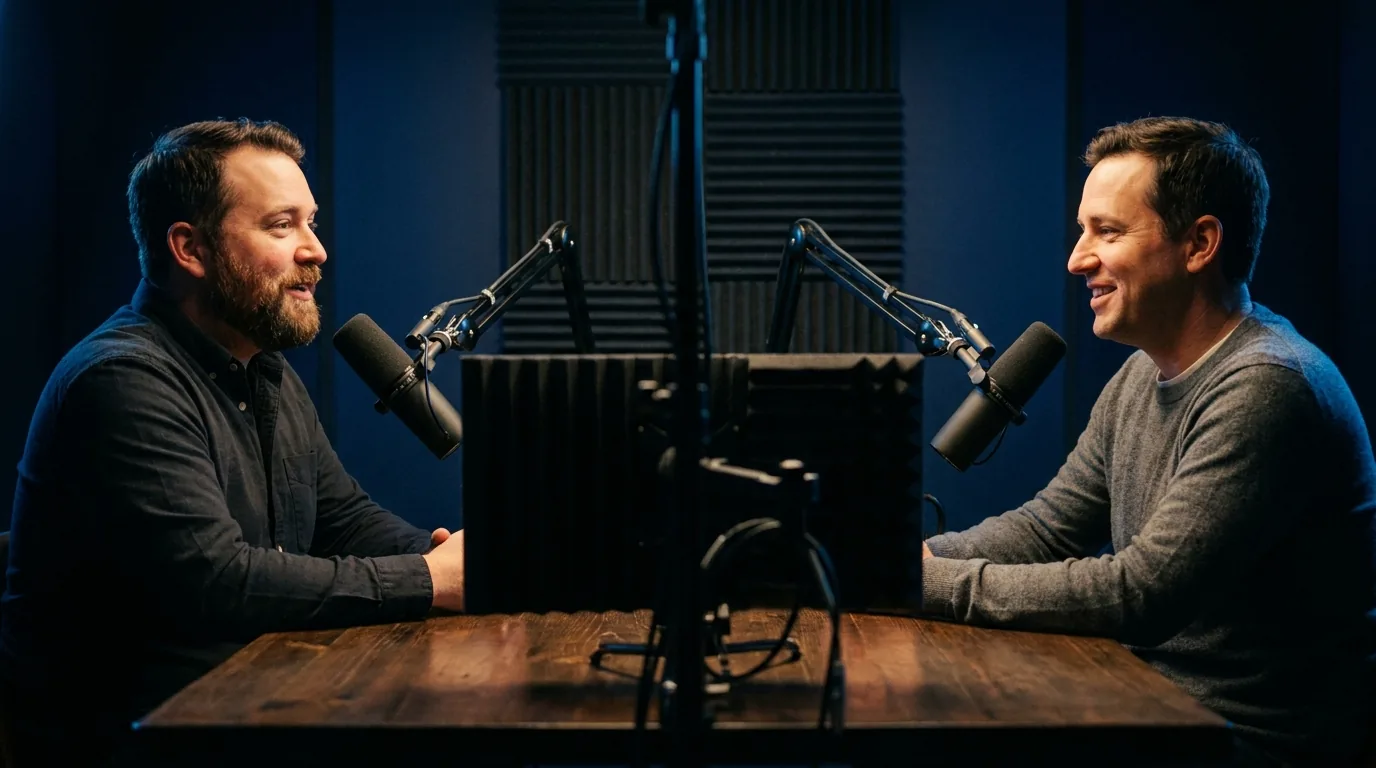
| Two person interview | Track the subject | Disagreements, counterintuitive claims | Centre crop, which frames the empty table |
| Panel with three or more | Track, or fit if everyone matters | One person's complete answer | Clipping a crosstalk moment nobody can follow |
| Webinar with slides | Track the speaker | Speaker driven explanations only | Clipping a slide, which nobody watches |
| Screen recording or tutorial | Fit the whole frame | One completed action, start to finish | Cropping, which cuts off half the interface |
| Conference talk | Track the speaker | The single strongest argument | Starting before the point begins |
| Stream VOD | Track, unless gameplay matters | Reactions your chat already flagged | Keeping the overlay clutter in frame |
| Lecture or course | Track the lecturer | One self contained idea | Clipping something that needs the prior module |
| Product demo | Fit, then crop for the reaction | The moment the thing actually works | Clipping the setup instead of the result |
The four hard cases, in detail
Webinars, where half the frame is a slide
The classic webinar layout puts slides across most of the frame and the presenter in a small inset. Both halves want opposite treatments, and no automatic mode handles both at once.
The workable answer is editorial rather than technical: only clip the stretches where the presenter is carrying the moment, and crop to them. Slide heavy passages are not Short material in the first place, because a vertical video of a bullet list is something people scroll past instantly. If the slide genuinely is the point, use fit mode and accept a smaller picture.
Screen recordings, where cropping is always wrong
Cropping a screen recording is destructive by definition. The important detail in a tutorial is spread across the full width, often in small text, and the vertical window keeps less than half of it. Use fit mode without exception here.
The other half of the job is choosing the window. A screen recording clip should show one completed action from beginning to end, because a partial action is worse than useless. That usually means a slightly longer clip than you would cut for a talking head, and that is fine.
Stream VODs, where the overlay fights you
Stream footage arrives with alerts, chat boxes, webcam frames and subscriber tickers arranged for a widescreen canvas. Crop that to vertical and you inherit a random slice of interface furniture.
Pick moments where the camera is the story, crop to the camera, and let the gameplay go. If the gameplay genuinely is the moment, fit mode keeps the whole scene at the cost of scale. Either way, the overlay is the thing to watch for in the preview before you render.
Panels, where three people share one frame
Tracking works when one person is clearly speaking for a stretch. It struggles during crosstalk, which is also when panels are most entertaining and least clippable.
The practical rule is to clip complete answers rather than exchanges. A panel moment that needs three voices to make sense needs too much context for a feed of strangers.
What to export, whatever the source
The output specification does not change with the input. This is the target for everything above.
| Resolution | 1080 by 1920 |
| Aspect ratio | 9 to 16 |
| Container and codecs | MP4, H.264, AAC |
| Frame rate | Match the source, never convert |
| Length | Under 3 minutes, usually far under |
| Captions | Burned in, kept out of the bottom fifth |
Converting from an unusual source
Which source types convert well to Shorts, and which do not?
Do I need a YouTube link, or can I use another source?
How do I convert a screen recording without destroying it?
What about a webinar with slides on one side and a speaker on the other?
Can I convert a video that has no speech at all?
What if my source is already vertical?
Related pages
Convert whatever you have
Paste the link, pick the mode your source needs, and check the preview before you render.
Open the converter