Horizontal to vertical video converter
Turns a wide 16:9 video into a 9:16 vertical clip that keeps the subject in shot.
Converting a horizontal video to vertical means keeping about a third of the width, and the whole job is choosing which third. Vid2Shorts finds the subject in the frame and positions the vertical window over them, moves it when the speaker changes, lets you drag it by hand, and can also fit the whole wide picture inside the tall frame over a blurred copy of itself. The export is a 1080 by 1920 MP4 on every tier, including free.
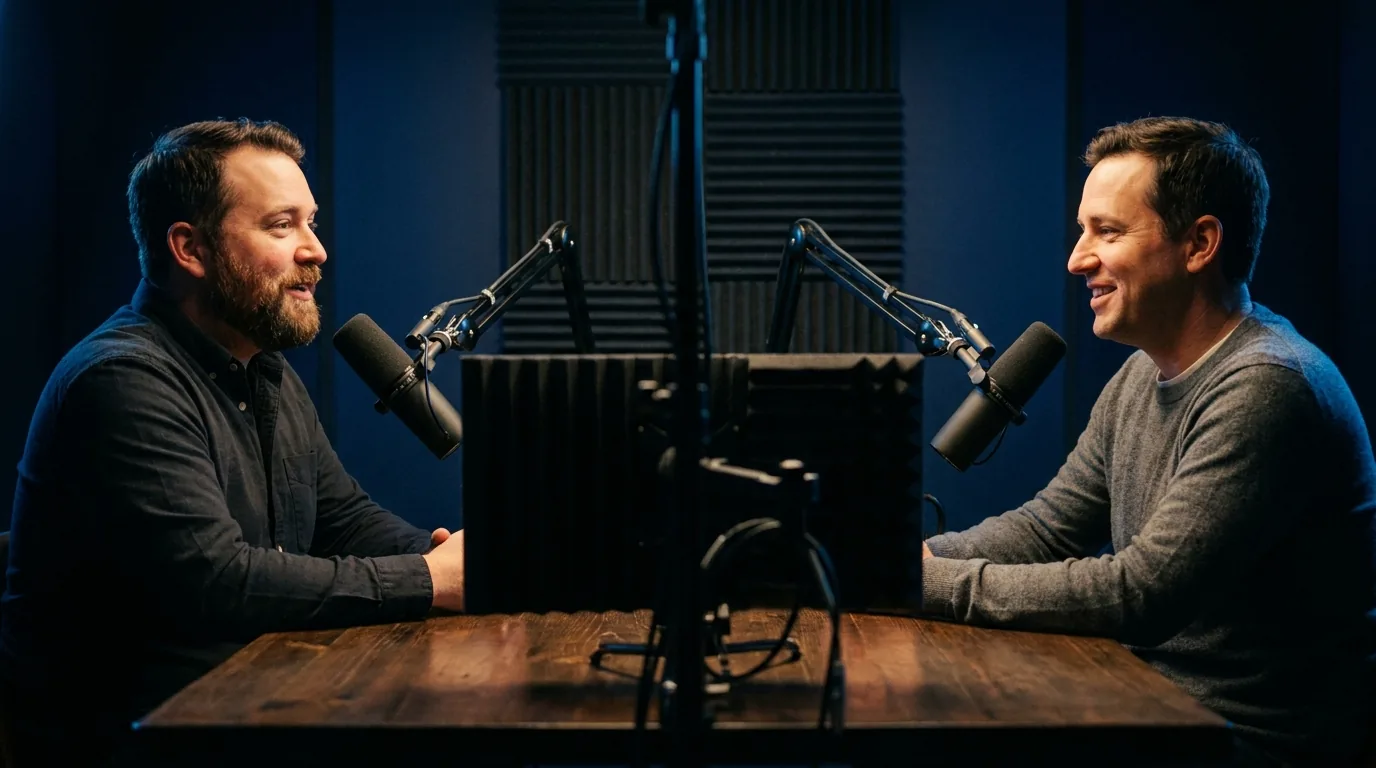
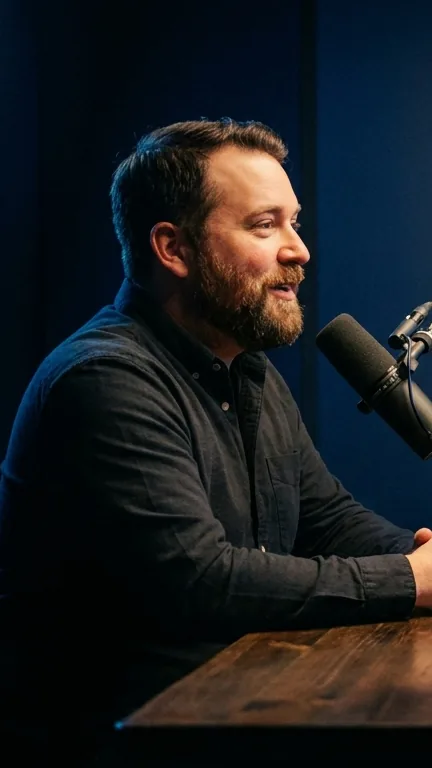
First Short free. No account, no software, nothing to upload.
This is the working tool, not a description of one. The first Short is free and needs no account. Everything on this page describes what the product does today, checked August 2026.
A 9:16 frame keeps 31.6 percent of a 16:9 picture
A 1920 by 1080 video turned into a 1080 by 1920 one keeps a window 608 pixels wide out of 1920. That is 31.6 percent of the width, and 68.4 percent of what was filmed is gone. There is no setting that avoids this. Every converter that promises to turn landscape into portrait is making the same cut; the only differences are where it puts the window and whether it tells you.
Scaling instead of cropping does not help either. Squeeze the width to fit and every face is a third as wide as it should be. Shrink the whole picture until it fits the tall frame and the video becomes a thin letterbox strip across the middle of a phone, which is what most people are trying to get away from. So the honest choices are two: crop to a moving window, or fit the whole picture inside the frame and accept bars above and below it.
This page is the second half of the job. The first half, deciding which part of a long video deserves to become a vertical clip at all, is what the Auto Clips ranking does, and a vertical conversion of the wrong forty seconds is a tidy waste of time. If you already have the moment, this is the tool for the shape.
Following the subject, and overruling it
The default behaviour finds where the subject is and places the vertical window over them. It does this by looking for the region with the most fine detail, which in practice means faces, hair, eyes and hands rather than a plain wall or a blurred background, and it is deliberately done without a face recognition model, so nothing is identified and nothing is kept. When the speaker changes in a two shot, the window moves to the new speaker instead of sitting on the gap between them.
It is right most of the time and not all of the time, so the window can be dragged by hand. A screen recording with the presenter in a small corner, a product on a table, a slide with the important words on the right: these are the cases where a person should decide, and the Studio shows the wide picture with the vertical box over it so you can see exactly what will be kept and what will not.
Black bars are handled before any of this. A video that was itself letterboxed, which is common with film clips and older uploads, is measured first and the bars are excluded, so the window is placed over the real picture rather than over a frame that is a third black.
When you should not crop at all
Some videos cannot survive a crop. A wide shot of a stage, a dashboard, a sports replay where the ball is on one side and the goal on the other, a slide full of text: cut any of those to a third of their width and the point of the shot is gone. For these the Studio has a fit mode, which places the entire wide picture inside the vertical frame and fills the space above and below it with a blurred, darkened copy of the video itself, so the frame reads as one image rather than a strip on black.
Fit mode leaves room above and below the picture, and that room is useful. A title in the top band and captions in the bottom band keep both clear of the picture, which is a layout a lot of news and sports clips use on purpose. The captions here are placed by default in the band that stays clear of the platform interface, and can be moved.
The backdrop does not have to be the blurred video. It can be a flat colour from a palette, the clip's own artwork, or an image you upload, and the picture can be scaled within the frame so a wide shot sits larger or smaller as the layout needs. Square 1:1 and full 16:9 exports are available as well for the platforms that want them.
Quality, sources, and what the free tier does
Resolution is worth understanding before you start. A vertical window cut from a 1080p source is 608 pixels wide, so it has to be scaled up to reach 1080 wide, and it will look softer than the original. The same window cut from a 4K source is 1215 pixels wide and scales down, so it stays sharp. If you have a choice of source quality, this is the one job where it matters most, and Pro exports take the source up to 4K for exactly that reason.
The source is a public YouTube link, which includes unlisted videos, so a wide recording uploaded to your own channel is the usual starting point. Uploading a file from your computer is not offered on the website yet. Every export is 1080 by 1920 H.264 MP4, which is the native size on YouTube Shorts, TikTok and Instagram Reels, so it is not scaled again on the way in.
The free tier makes one Short a day, up to 30 seconds, with a small corner watermark, and needs no account for the first one. A day pass or Pro removes the watermark and the daily limit. Nothing about the reframing itself is held back on free: the subject following, the manual window, fit mode and the backdrops are all there.
How to do it
Paste the link
A public or unlisted YouTube link on the homepage. No account and no card for your first Short.
Pick the moment
Let Auto Clips rank the strongest passages, or drag the exact range yourself in the Studio.
Check the vertical window
The box is placed over the subject automatically. Drag it if the important part of the picture is not a face.
Or choose fit
For stages, slides, dashboards and replays, switch to fit mode so the whole wide picture sits inside the frame over a blurred backdrop.
Export
A 1080 by 1920 MP4, with captions timed per word if you want them, ready for Shorts, TikTok and Reels.
Specifications
The numbers rather than the adjectives, including the limits. If one of these is a dealbreaker it is better learned here than after paying.
| Output | 1080 by 1920 MP4 (9:16); 1:1 and 16:9 also available |
|---|---|
| Crop mode | The window follows the subject and can be dragged by hand |
| Fit mode | Whole picture inside the frame over a blurred copy, a palette colour, artwork or your own image |
| Black bars | Detected and excluded before the window is placed |
| Kept width | 31.6% of a 16:9 frame in crop mode (608 of 1920 pixels at 1080p) |
| Source | A public or unlisted YouTube link. File upload is not offered yet |
| Output | 1080 by 1920 MP4, H.264, on every tier including free |
| Runs in | Any modern browser. Nothing to install, works on a phone |
| Free tier | One Short a day, up to 30 seconds, with a small corner watermark |
| Account needed | Not for your first Short. Captions and subtitle files need a free account |
What people ask about this
How do I convert a horizontal video to vertical without cutting people out?
How much of the video is lost going from 16:9 to 9:16?
Can I keep the whole picture instead of cropping?
Will the output be blurry?
Does it work on a two person interview?
What size does the vertical video come out at?
Can I convert a video from my phone or computer rather than a link?
Is it free?
Try it on one video
The first Short is free, needs no account, and takes about two minutes. That answers more than any page about a tool can, including this one.
Open the Studio