YouTube to TikTok converter
Takes a wide YouTube video and makes clips that work on TikTok.
Converting a YouTube video to TikTok is three separate jobs, not one: choosing which part is worth posting, reframing a wide picture into a vertical one without cutting the speaker out, and captioning it so it works with the sound off. A file converter does none of those. Vid2Shorts does all three from a pasted link.
First Short free. No account, no software, nothing to upload.
This is the working tool, not a description of one. The first Short is free and needs no account. Everything on this page describes what the product does today, checked August 2026.
This is not really a format conversion at all
The phrase makes it sound like a file problem, and it is not. A YouTube video and a TikTok are different shapes, different lengths, and different kinds of thing. A long video can afford a slow start because somebody chose to click it. A vertical clip arrives uninvited in a feed and has about a second to justify itself. Changing the container does nothing about that.
So what actually has to happen is a decision about which forty seconds are worth anything, a reframe that keeps the important part of the picture, and captions, because the feed is muted by default. Any tool that only resizes has solved the least important third of the problem and left you the other two.
Vertical from horizontal means throwing most of it away
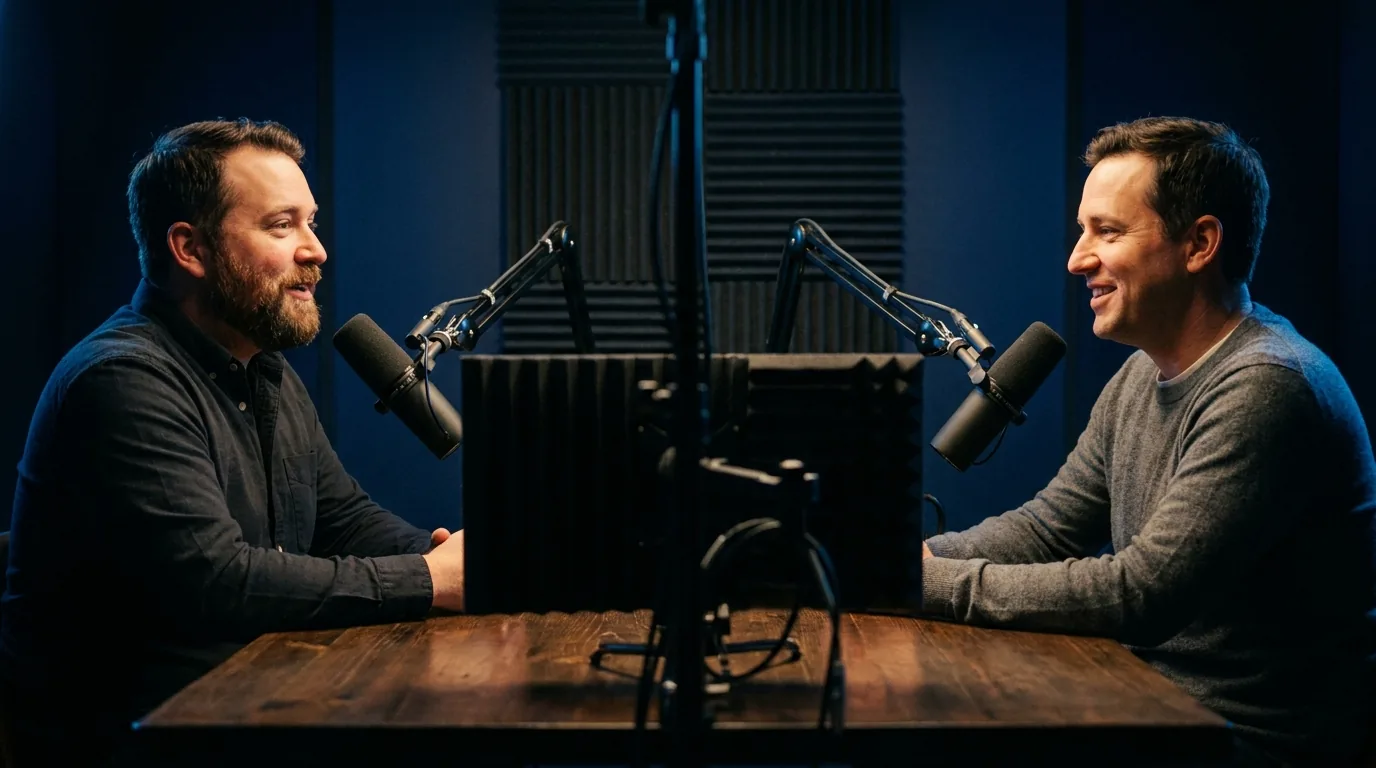
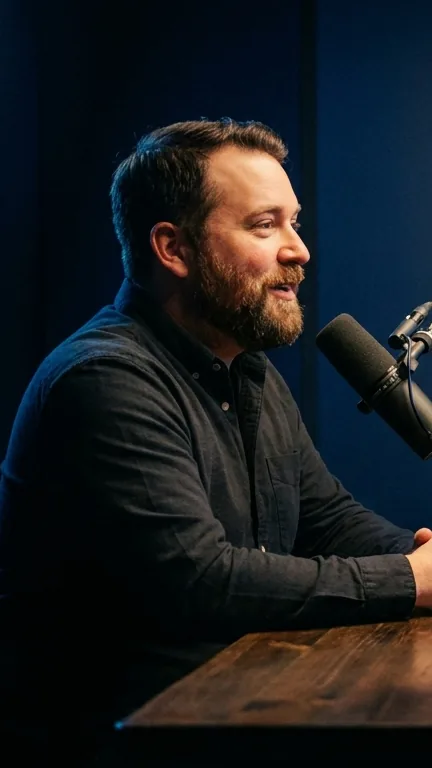
A 16:9 frame turned into 9:16 keeps roughly a third of the width. Which third you keep is the whole question. Taking the middle works for a single speaker sitting centred and fails immediately on anything else, most obviously on a two person interview where the middle of the frame is the gap between two people.
Here the vertical window follows whoever is speaking, so it moves when the speaker changes rather than sitting still and hoping. That behaviour is the single most useful thing to test before committing to any tool for this job. Run one interview through and watch what happens the moment the second person starts talking.
You can also move the window by hand. Automatic framing is right most of the time and not all of the time, and a tool that will not let you overrule it wastes the clip it got wrong. Screen recordings and anything with text on screen are the usual cases where a human should decide, because the important part of the picture is not a face.
What to cut, and how long to leave it
The strongest clips tend to be complete small things rather than excerpts. They start on the line that makes somebody stay, they do not require setup that is not inside them, and they end on something that lands rather than trailing into the next topic. That is why the ranking here scores whether a moment stands alone: a great answer to a question nobody heard is not a clip.
Length is worth being unsentimental about. A moment that needs ninety seconds usually needs ninety seconds because it has not been cut properly, not because it is deep. Try the version that starts eight seconds later and see whether anything was lost.
It is also worth resisting the temptation to post everything a run produces. The top two or three from a long video are usually worth publishing and the rest are the same recording in a different hat. Eight mediocre clips from one episode teach a feed to scroll past your name.
Watermarks, rights and the things that get videos taken down
Two practical points that decide more of this than the software does. First, rights. Clip what you made or what you have permission to use. A tool will happily process a public link and that is not the same as permission to republish, and our terms say so at more length.
Second, other people’s watermarks. Reposting a clip that still carries another platform’s mark is a reliable way to get it suppressed by the platform you are posting to. If you are repurposing your own long uploads, this does not arise. If you are working from something you downloaded elsewhere, it does.
How to do it
Paste the YouTube link
On the homepage. No account and no card for your first Short.
Find the moment
Let the transcript be read and ranked, or pick the exact moment yourself in the Studio if you already know it.
Check the vertical window
It follows the speaker automatically. Nudge it by hand for screen recordings or anything where the important part is not a face.
Caption it
Word by word, because the feed is muted. Keep them clear of the bottom third where TikTok draws its own interface.
Export and upload
A 1080 by 1920 MP4, the native size, so nothing gets re-encoded harder than it needs to be on the way in.
Specifications
The numbers rather than the adjectives, including the limits. If one of these is a dealbreaker it is better learned here than after paying.
| Output | 1080 by 1920 MP4, the native vertical size |
|---|---|
| Reframing | Follows the subject, and can be moved by hand |
| Source | A public YouTube link |
| Captions | Timed word by word, placed clear of platform interface |
| Free tier | One Short a day up to 30 seconds, with a small watermark |
| Output | 1080 by 1920 MP4, H.264, on every tier including free |
| Runs in | Any modern browser. Nothing to install, works on a phone |
| Free tier | One Short a day, up to 30 seconds, with a small corner watermark |
| Account needed | Not for your first Short. Captions and subtitle files need a free account |
What people ask about this
How do I turn a YouTube video into a TikTok?
What size should a TikTok video be?
Will it crop out the person talking?
Can I repost someone else’s YouTube video to TikTok?
How long should the clip be?
Does it work for Instagram Reels and YouTube Shorts too?
Do I need to install anything?
Try it on one video
The first Short is free, needs no account, and takes about two minutes. That answers more than any page about a tool can, including this one.
Open the Studio